Software
Honest review of Grok Bot
Grok Bot is the closest thing I have used to OpenClaw, except the Linux computer is already running in the cloud. Here is the marketplace, the GitHub token limit, the routine bug, and what you give up for zero setup.

- grok-bot
- grok
- cursor
- spacexai
- openclaw
- mcp
Grok Bot is the product I would hand to someone who has heard of OpenClaw and does not want to build the computer themselves.
OpenClaw is an open-source assistant. It lives on a machine you own. You pick the model. You pay for the hardware, and for whatever model subscription or API you plug in. The software itself has no fee. Grok Bot asks for the same kind of work: marketing, customer service, a personal assistant, a bot that keeps going after you close the laptop. The computer is different. It is a cloud Linux PC, already set up, and it is yours for that account.
I am writing this from daily use, with an update on 2 October 2026. SpaceXAI launched Grok Bot on 11 August 2026. The app shots below are from the public product page, plus one clean onboarding screen. Personal chats, files, and logins stay out of this review.
What you actually get
You do not rent a chat window. You get a persistent cloud computer. SpaceXAI’s docs describe it as a managed Linux virtual machine with a browser, a terminal, and a shared workspace. Every bot on your account uses that one computer. Files, browser cookies, and command-line credentials are shared. One bot can pick up a file another bot saved.
That is the “personal space” part, and it is also the limit. The computer belongs to your user, not to a single bot. A marketing bot and a personal assistant on the same account can see the same logins. If that matters, do not treat two bots as two locked rooms.
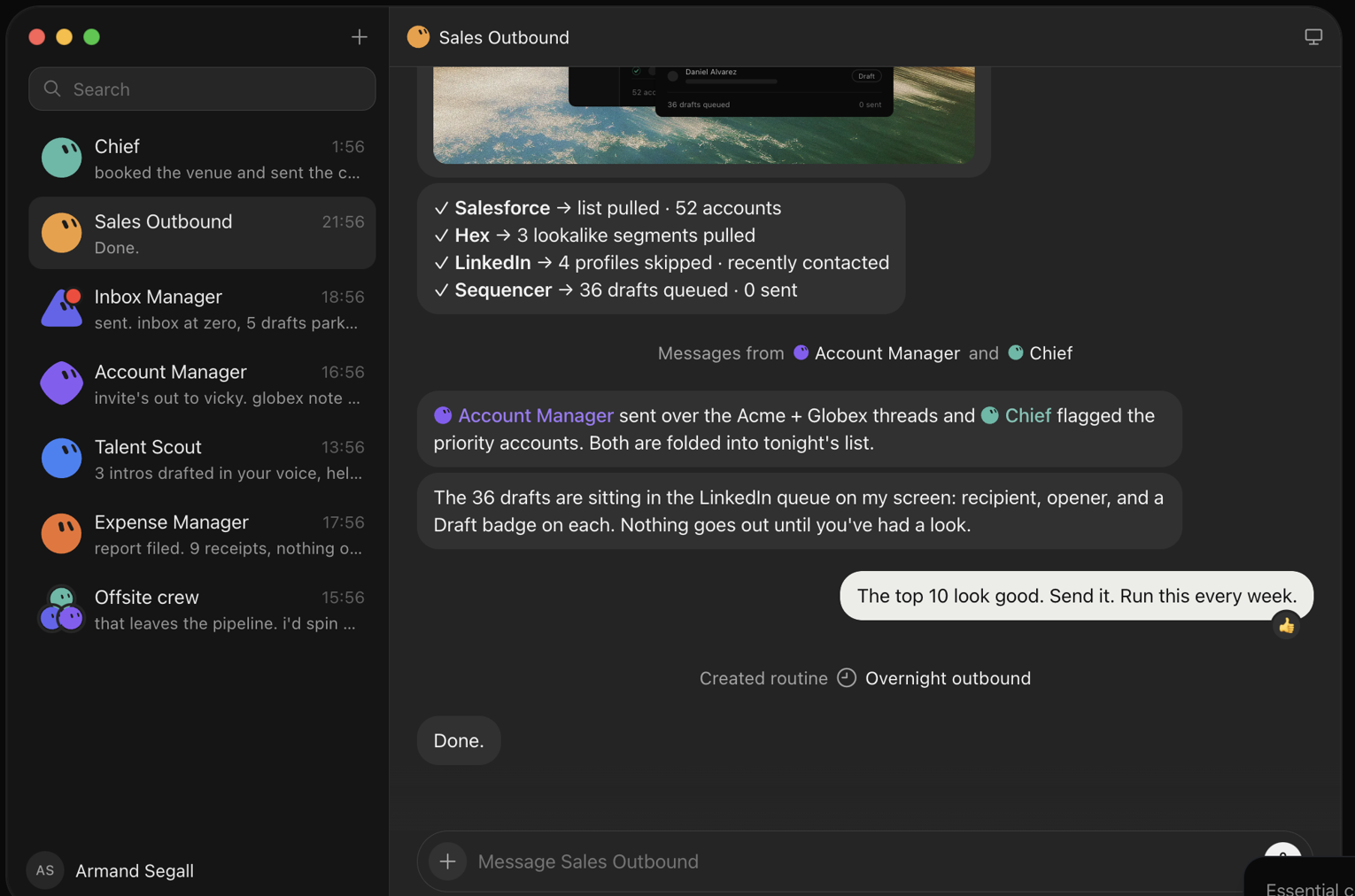
The bot can be a marketing director, customer service, or a personal assistant, because you name the role and then let it work inside the tools. On the product page that looks like Sales Outbound, Inbox Manager, Talent Scout, Expense Manager. In practice it is the same shape: a standing teammate with a job, on a computer that stays on when your laptop does not.
You talk to it from the Grok Bot app. As of the FAQ checked for this review, that is macOS, Windows, Linux, iPhone, and Android. Closing the app does not stop a background task or a routine.
A primary bot that manages the others
A new account now opens with a primary bot already in place. You do not start by staffing an empty list. The first messages say what the job is: it manages your other bots, you can task it with anything, and it sends the work to the right one. Then it looks through connected tools and recent files on its own.
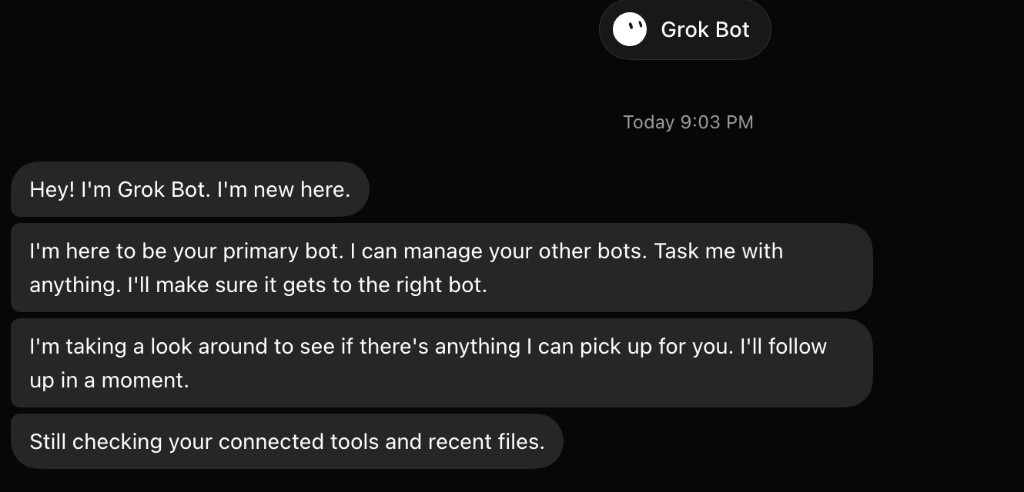
This is the chief-of-staff idea from the launch, shipped as the default. You still create the specialists: marketing, customer service, a personal assistant. You do not have to remember which chat to open. Tell the primary bot, and it routes.
The primary bot is a dispatcher. It is not a second computer, and it is not a lock between bots. Specialists on the same account still share files, browser sessions, and logins.
The marketplace, and MCP
When a tool has a proper connector, you add it from the marketplace. Grok Bot uses the same plugin and Model Context Protocol (MCP) surface as Cursor. You search, you add, and the bot can call that tool without driving a website by mouse clicks.
These shots are from the marketplace inside the product. They are the part worth showing. My own bot screen has too much personal material in it.
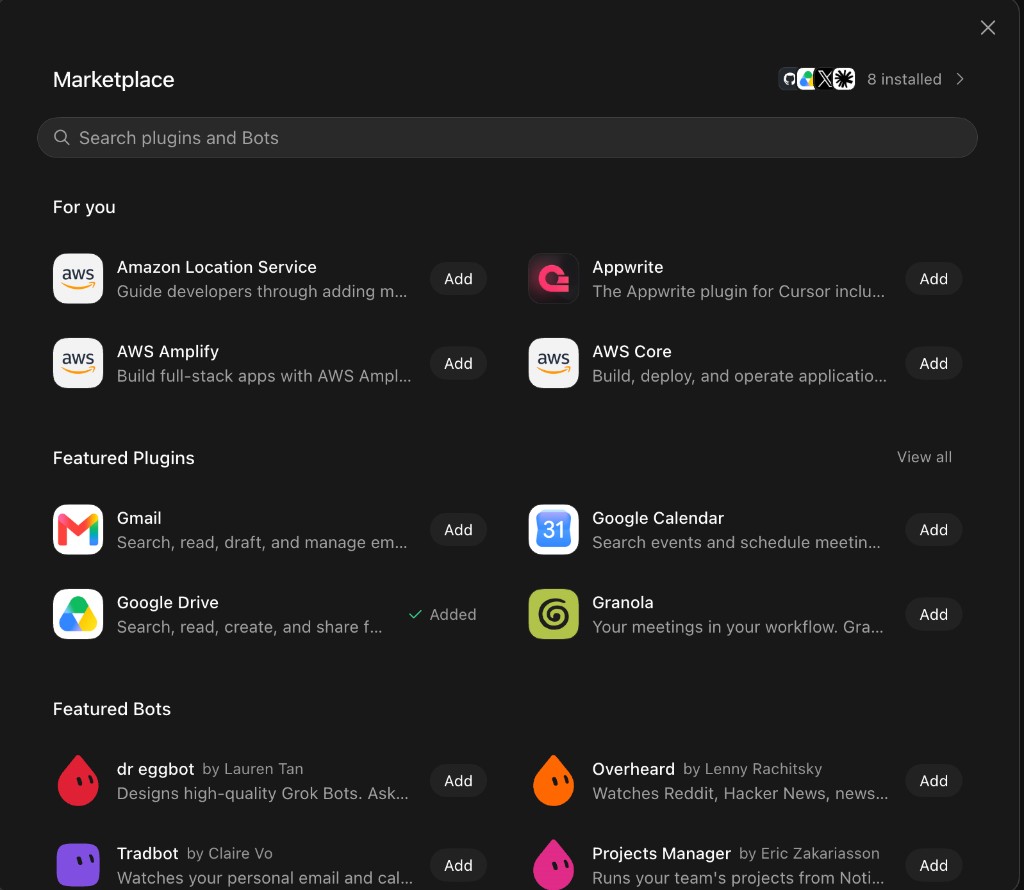
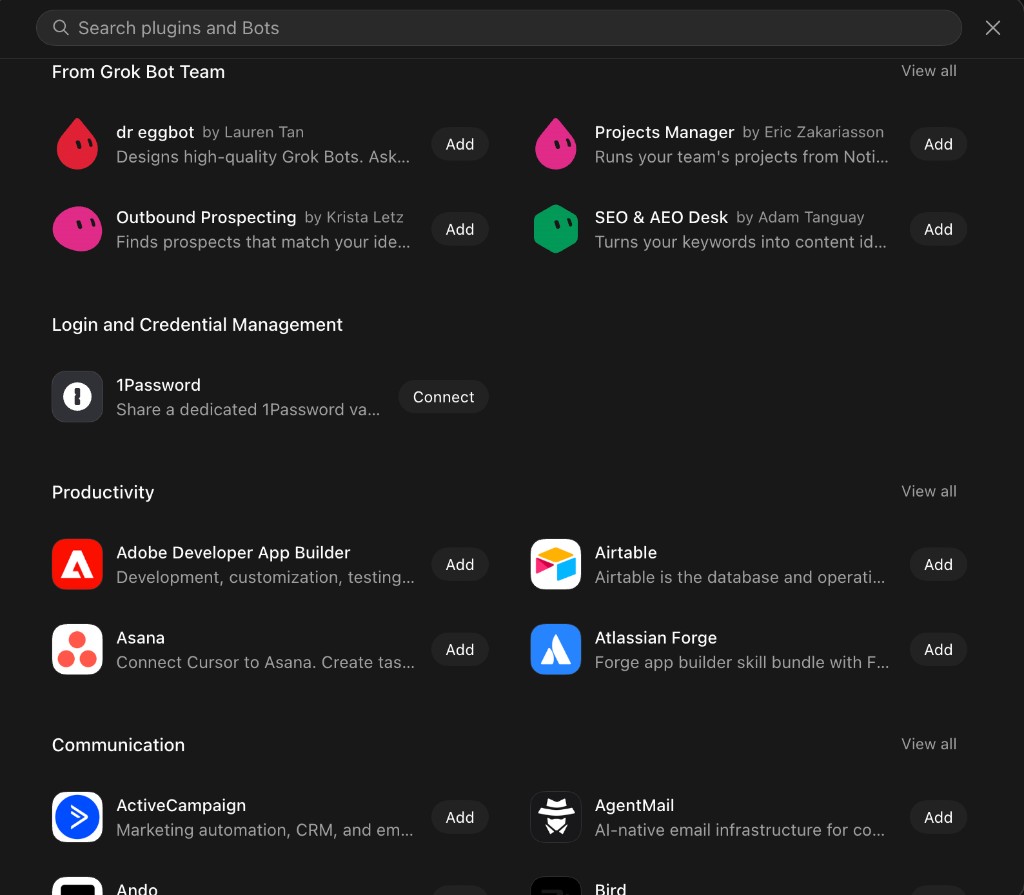
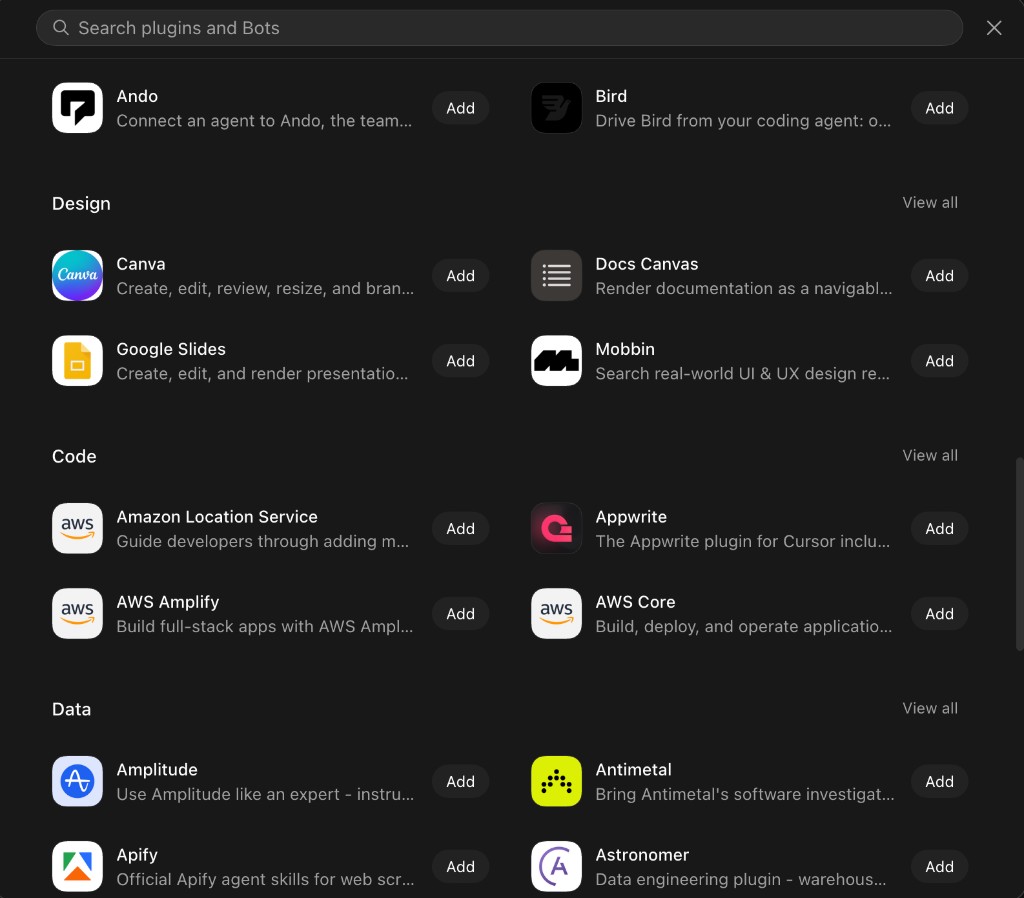
The list keeps going through sales (Apollo, Clay, Attio), finance (Aave, Airwallex), research (Ahrefs, Context.dev), and support (Intercom, Plain, MailerLite). If the tool you want is in that store, use the plugin. It is the reliable path.
GitHub is the plugin I care about, and it is awkward
For a working repo, the GitHub plugin matters more than almost anything else in that list. It also has a real limit.
GitHub does not give you a normal account login inside this plugin. You create a personal access token, paste it in, and that token is how the bot sees the repositories you allow. A fine-grained token, limited to the repos you actually want the bot to touch, is the sane version of this.
The bad part: that setup holds one personal access token. If you have two GitHub accounts, a work account and a personal one, you pick one. There is no second slot. Gmail and Slack can take more than one account through their connectors. GitHub, in the form I have, cannot.
So the bot is excellent on the account you linked, and blind on the other one. Plan the token around the account where the work actually lives.
If the tool is not in the store
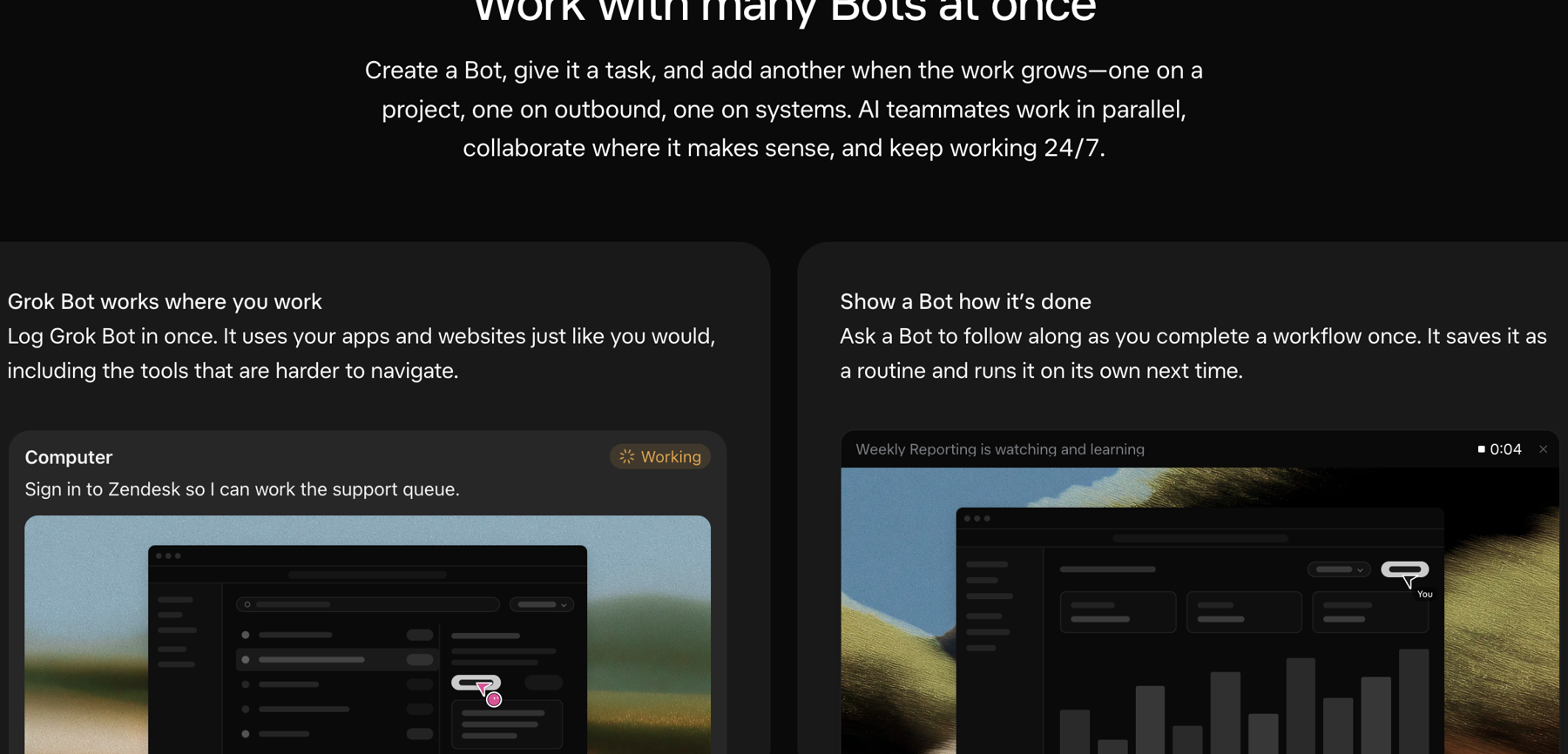
WhatsApp is the example I keep hitting. It is not in the marketplace. Grok Bot does not invent a connector. It opens the browser on that cloud computer, goes to WhatsApp Web, and shows you the QR code. You scan it with the WhatsApp on your phone, the same way you would on a desktop you were sitting at.
That pattern is general. The docs say the bot can use many sites that have no connector, and that a login, a CAPTCHA, or a two-factor prompt should be handed back to you. You take over the screen, you finish the human step, you hand the computer back. The session stays on the shared browser, so the next task usually does not ask you to scan again.
Use this for the tools that will never ship a plugin. Prefer the marketplace when a plugin exists. A browser session is a login you can see. It is also a login that can expire, get challenged, or sit in a tab the bot has to find again.
Routines, and the bug in the schedule
A routine is how the bot knows when to wake up. Officially, a skill is how to do a task, and a routine is that task plus a time, or an event where the product supports one. You can also tell the bot, in the chat, “run this every week,” and it will save a routine. The Sales Outbound example on the product page does exactly that: one sentence, then “Created routine: Overnight outbound.”
The bug is in the manual control.
If I set the day and time by hand in the schedule UI, the routine does not fire. The way that actually works is to tell the bot the frequency in conversation, and let the bot write the routine. Even then, when the day and time arrive, it can still misfire. It may run at the wrong hour, or miss the day you named.
So I treat a new routine as untrusted until I have seen it fire once at the right moment. If the job is “send this,” I still want an approval step. A misfired routine that only drafts is annoying. A misfired routine that sends is a different problem.
Two advantages
In Asia, this is the cloud teammate you can open today.
Two products sit in the same category. Muse, from Meta, launched on 8 September 2026. Dots, from OpenAI, launched on 29 September 2026. Both are always-on agents with a cloud computer, the same job Grok Bot is doing.
Muse is available in the United States and Canada. Meta’s own small-business note calls it a personal AI agent for those two countries. Asia is not on that list, and Meta has not published an Asia date.
Dots is different. OpenAI is rolling it out to ChatGPT Pro users outside the European Economic Area, the United Kingdom, and Switzerland, which includes markets such as Singapore, India, Japan, South Korea, and Taiwan, and to Business Premium in supported ChatGPT regions. That rollout is gradual, so an eligible account in Asia can still be waiting. From here, Muse does not open at all. Dots is not something I can count on this week. Grok Bot is the one that is already on the account.
OpenClaw is the other comparison, and it is free software you host yourself. You bring a machine, you choose a model, and you connect the chat apps. That control is the point of it. It is also a learning curve.
Grok Bot skips that curve. The cloud computer is provisioned for you. You sign in with an eligible Cursor or SuperGrok account, a primary bot is already there to manage the others, and you start handing it work. Personal Linux computer, shared bots, plugins over MCP, and a browser for everything else, with the install already finished. In Asia, that package is the one you can use without waiting on a regional launch.
The usage bucket is separate from Cursor coding usage.
This is the advantage that matters if you already live in Cursor. The launch note says Grok Bot has its own usage, separate from your Grok and Cursor plans, so work you hand to a bot does not draw down the pool you use for coding. On the pricing page that bucket is weekly, and extra usage can be billed from token cost.
Checked on 29 September 2026, Grok Bot is included with paid Cursor plans. Cursor Pro is listed at US$20 a month and includes the computer, tool sign-in, scheduled routines, and desktop plus mobile. SuperGrok is listed at US$30 a month with Grok Bot access. Cursor Teams Standard is listed at US$40 per seat. If you already pay for Cursor Pro to code, you are not buying a second subscription just to try the bot, and the bot’s week is not the same meter as the editor’s month.
Two disadvantages
It is not free.
OpenClaw is free software. Your costs there are the hardware and the model you attach. Grok Bot rides on a paid plan. The weekly bucket is included, and it is still a bucket. Heavy weeks can spill into on-demand token billing. You are renting the computer and the usage. You are not owning the box.
You do not choose the model.
In a Cursor project I pick the model. Grok Bot does not offer that. The teams and enterprises guide is explicit: there is no model picker for members or admins, and SpaceXAI does not plan to add one. Each request goes to a fixed set of models, with automatic failover. The bot decides what is fit for the task.
That is part of why the setup feels short. It is also a real loss if you already know that one model is careful with a repo and another model is the one you want for a customer email. You cannot pin it. You cannot swap it when a model has a bad day.
Who this is for
Use Grok Bot if you want a teammate this week, you already pay for Cursor or SuperGrok, and you would rather message a bot than administer a home server. That is especially true in Asia, where Muse is closed and Dots is still arriving account by account. Marketing, support, and personal admin are the jobs it is built around. Coding still belongs in Cursor. The separate usage pool is what makes it reasonable to run both.
Skip it if you need the model pinned, if you need two GitHub accounts on one bot, or if you want the assistant on hardware you control. That last requirement is OpenClaw’s home ground. Grok Bot will not become that product. The computer is theirs, assigned to you.
If you do use it, link GitHub with one fine-grained token on the account that matters, add marketplace plugins before you fall back to the browser, and confirm a routine by watching it fire. The product is ready on day one. The schedule still needs you to check its work.
Writer, Singapore
Comments
Leave a considered note. Comments are public.
No comments yet.